


How to Install WordPress – Step by Step Guide
Preparation before installation is key.
Key points
- WordPress installation starts with downloading files.
- Hosting and database preparation is key.
- Creative and technical settings accompany the installation.
Preparing to install WordPress
Before you start WordPress installation, it is necessary to correctly place basic elements such as domain name and web hosting.
I remember my beginnings like it was yesterday, so I know how confusing it can be, but it can all be easily straightened out. constant technical support for all questions and problems!
Choice of domain and hosting
Choosing the right domain is an essential step in setting up your WordPress site. .com, .net, i local domains as it is .rs. TrueFalse Hosting.
After choosing the domain, it is necessary to choose reliable hosting provider. speed, reliability and technical support.
When choosing, pay attention to:
- Disk space
- Throughput
- Number of supported sites
- Backup capabilities
It is recommended to choose a provider that offers hosting optimized for WordPress, such as True-False Hosting, to ensure stable performance and support.
Checking hosting for compatibility
Before installing WordPress, it is important that your hosting meets the technical requirements of the platform. PHP 7.4 or later and MySQL 5.7 or MariaDB 10.3.
Most hosting providers allow users to run WordPress smoothly without additional technical settings.
Installation - Easy and short steps!
Manually installing WordPress requires several key steps that include downloading the required files, creating a database, uploading the files to the server and running the installation script.
Download WordPress
The first step in installing WordPress is to download its files. the official WordPress site, where the "Get WordPress" button can be found.
Downloaded files come in ZIP format, which should then be unzipped on your local computer.
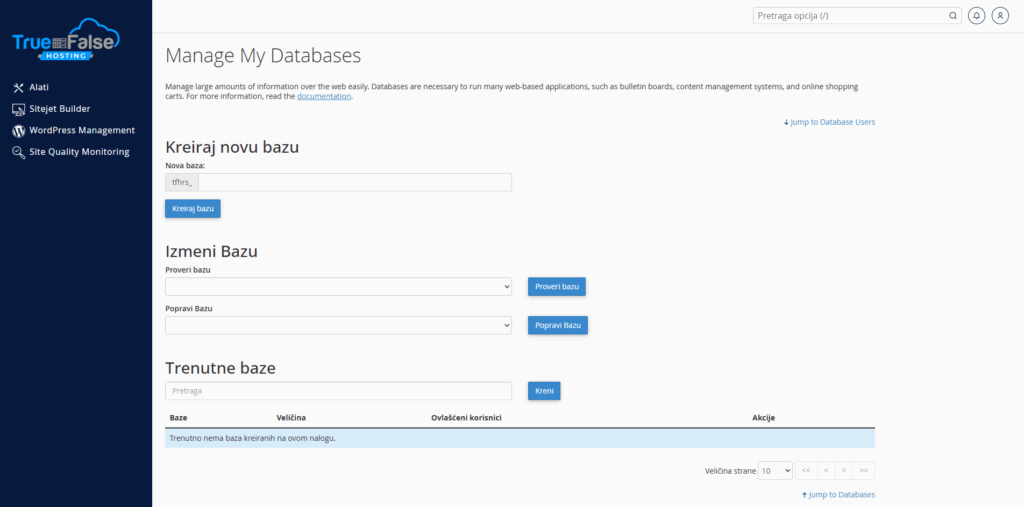
Creating a database
Creating the database is the next step in the installation process. hosting service.
This information will be needed later during the installation of WordPress on the server.
Uploading files to the server
After the files have been downloaded and the database created, the next step is to upload the files to the server.
After connecting the FTP client to the server with help hosting data, the files are moved to the desired directory, often in public_html.
Running the installation script
The last step in installing WordPress is to run the installation script. site URL through a web browser, the user begins the installation process.
After entering the necessary information, it is possible to define the basic settings, such as the site name and admin data.
See here in more detail how it looks automated WordPress installation through hosting:
WordPress Configuration - Additional Tips
The first steps in configuring a WordPress site include choosing a custom theme and plugins, setting up permalinks for better SEO optimization, and simpler basic site settings.
Choice of theme and plugins
The choice of theme has a significant impact on the appearance and functionality of the site. Premium themes often offer more functionality and support, while free themes suitable for beginners.
Customizing plugins allows you to personalize the experience. Yoast SEO for search engine optimization, Jetpack for security and faster loading, and Elementor for designing pages without coding.
Setting permalinks
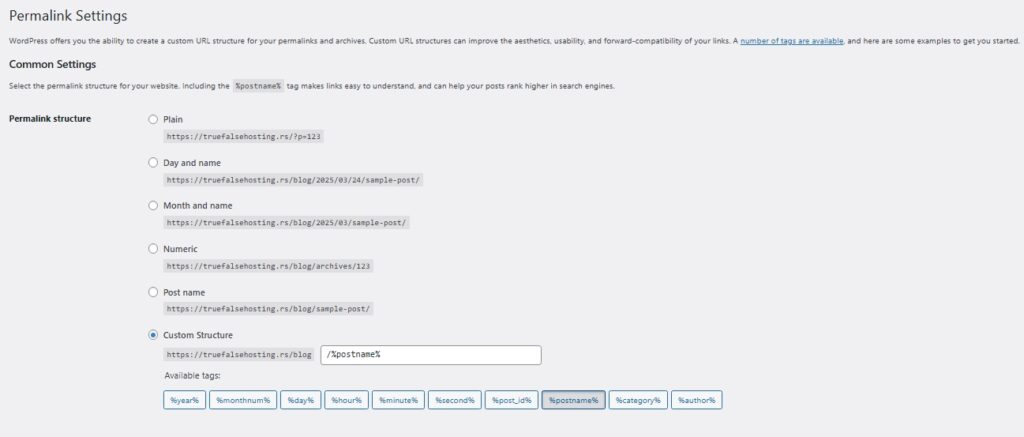
Customizing permalinks is important for SEO and user experience. SEO friendly the structure usually contains the name of the post or keywords.
The recommended format is Post Name, which improves search engine visibility and makes URLs much more readable and attractive to users.
Basic WordPress site settings
Adjusting basic features can drastically improve the user experience. Time zone must be correct to ensure correct timing of published posts.
Regular software updates are also essential for the security and smooth operation of the site. Optimizing comment options enables greater interaction with visitors while reducing unwanted content.
Frequently asked questions
What are the basic technical requirements for installing WordPress?
To work effectively, a server must support certain specifications.
How do I choose the right hosting for my WordPress site?
When choosing hosting, users should consider loading speed, security and technical support. reliability and customer support.
What are the steps to install WordPress via cPanel?
To install WordPress via cPanel, you first need to access the cPanel control panel.
Is there a way to manually install WordPress and how do I do it?
Manual installation involves downloading the package from WordPress.org and extracting it to your local computer.
What is the difference between the WordPress.com and WordPress.org platforms?
WordPress.com offers hosting solutions with limited flexibility and less control, while WordPress.org allows full site control with the need for independent hosting and technical expertise.
How do I secure my WordPress site after installation?
Security measures include regularly updating themes and plugins, using strong passwords, and installing security plugins.